 PanoRyse
AI Assist and MCP
AI Assist lets you ask for things in plain words. The built-in model runs on your computer; a cloud model is used only if you choose one, with your own key. The MCP server lets other AI tools drive PanoRyse.
Open AI Assist
- Click AI Assist on the top bar. The drawer opens beside the canvas. When it has a suggestion, the button says AI Assist • 1 Tip.
- Type a request in the box at the bottom and press Send.
- The answer says what it did. Every action is an undo step, so Ctrl+Z takes it back.
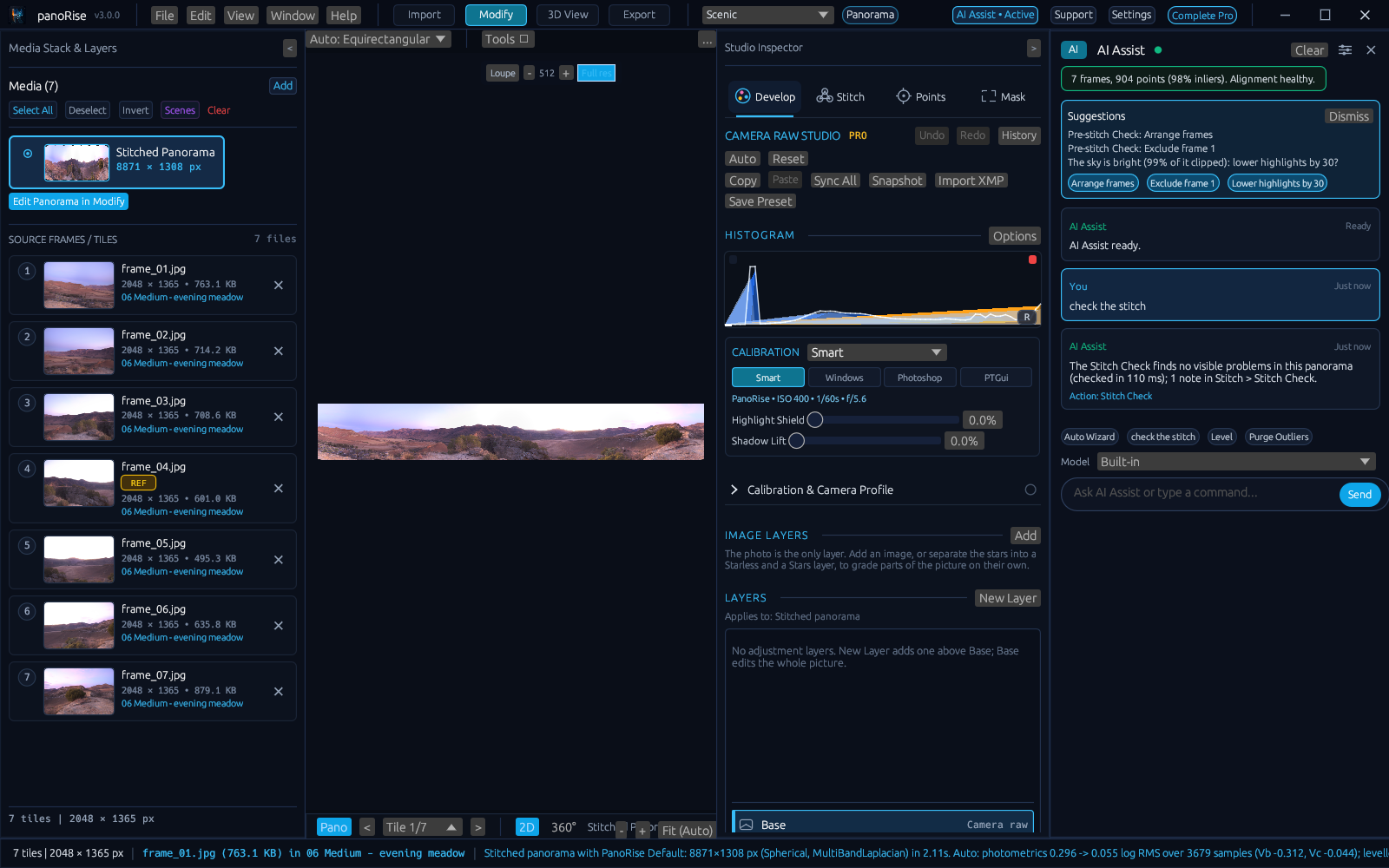
What the built-in model understands
The built-in model needs no network and answers at once. Some requests it understands:
| You type | What happens |
|---|---|
| "check my photos before stitching", "crop the borders", "exclude the blurry frame" | Answers from the Pre-stitch Check, with chips that apply the fixes. |
| "check the stitch", "why is there a line", "fix it" | Answers from the Stitch Check. |
| "level the horizon", "remove bad points", "bundle adjust" | Runs the matching tool. |
| "how much overlap" | The measured overlap between neighbours. |
| "select the sky", "mask the people", "suggest edits" | Builds a selection or suggests edits (vision features use the optional model packs). |
| "edit these as separate photos", "stitch them together" | Changes the project kind. |
| "make the sky black", "fix the colour" | Runs Auto colour (astro) on a night photo. |
| "plan a shot of the Milky Way core", "when is the best night for Orion" | Lists the best nights, with buttons that set the Sky Atlas. |
| "plan a Milky Way shot", "when can I see the galactic core", "how do I polar align my tracker" | Opens the shot planner, or its tracker guide. |
| "switch to light mode" | Changes the colour theme. |
Tips appear as small cards in the bottom-right corner of the canvas: a short title, one sentence, a fix button and More, which opens AI Assist with the full explanation.
Use your own provider
- Open the gear in the AI Assist drawer and choose a provider: Google Gemini, OpenAI, Anthropic Claude, xAI Grok, or a local server (Ollama, LM Studio or any OpenAI-compatible address such as
http://localhost:11434/v1). - Paste your API key. Keys are kept in memory; if you save a named connection, its key is stored encrypted on your computer. Forget all saved keys deletes them.
- Send a request. The provider receives your text and the tools PanoRyse offers, and PanoRyse runs the tool calls in the reply.
You approve file access. When a cloud model asks to read or write a file (import, export, saving), the request waits in the drawer for your Allow or Deny. This protects you from instructions hidden in file names or metadata.
AI Assist is free with every edition. A tool call follows the licence of the feature it runs: asking for star separation needs Night & Astro Pro (or its trial), just as the button does.
The MCP server
PanoRyse is also a Model Context Protocol server, so MCP clients (desktop AI apps, IDE agents, your own scripts) can use the same engine without a window.
- Add PanoRyse to your client's configuration:
{ "mcpServers": { "panoryse": { "command": "C:/PanoRyse/PanoRyse.exe", "args": ["--mcp"] } } } - The client starts
PanoRyse.exe --mcp, which speaks JSON-RPC over standard input and output (initialize,tools/list,tools/call). - Ask your AI tool to import photos, stitch, develop, crop and export. Calls that start background work answer when the work has finished.
Some of the tools:
panoryse_import_images,panoryse_align_and_stitch,panoryse_get_project_statepanoryse_set_projection,panoryse_straighten_horizon,panoryse_set_crop,panoryse_purge_outlierspanoryse_adjust_camera_raw,panoryse_layers,panoryse_add_local_adjustment,panoryse_import_xmppanoryse_fill_nadir_tripod_hole,panoryse_fill_boundary_infillpanoryse_stack_frames,panoryse_separate_stars,panoryse_ghs_stretch,panoryse_astro_auto_colour,panoryse_detect_satellite_trailspanoryse_plan_best_nights,panoryse_plan_night_timeline,panoryse_plan_pointing,panoryse_set_themepanoryse_project_kind,panoryse_batch_export,panoryse_export_project
Your MCP client confirms tool calls itself. Every change is an undo step in the project.
Drive the open window
To let an MCP client work in a PanoRyse window you already have open, start the window with a control port and connect the client through it. Files the client opens, imports or writes must be inside the folders you name: --automation-read-root for files it reads and --automation-write-root for files it writes. Without them the client can still stitch and edit, but every command that reads or writes a file is refused.
- Start the window:
PanoRyse.exe --control 47615 --control-token-file C:/PanoRyse/control.token --automation-read-root D:/Photos --automation-write-root D:/Exports - Add the bridge to your client's configuration:
{ "mcpServers": { "panoryse-window": { "command": "C:/PanoRyse/PanoRyse.exe", "args": ["--mcp", "--connect", "127.0.0.1:47615", "--control-token-file", "C:/PanoRyse/control.token"] } } }
The token file is made readable only by you. PanoRyse refuses a token file that other users can read.